This is yet another post on how I put my Silhouette machine to work! I have two little boys (little G man and little B man) and they LOVE stickers. What kid doesn’t? My favorite part about how much they like stickers is that they keep them quiet during church!
The problem with stickers is I have a hard time spending money on them when I know one sticker will only last for less than a second and once it’s stuck to that paper it is basically rendered useless (aside from the quiet it brings). Whenever I go to Michaels or Joann’s or look at Amazon.com I am always tempted to buy their super cute stickers, but then get very turned off by the price. Yes, you can find pretty good sales and use 40% off coupons, but the ones you want when you want them are always the most expensive (talking about specific themes for preschool or the favorite cartoon character for the week).

To save some money and make sure I always get what I want when I want it, I usually always make my own stickers now. Granted they aren’t slicky and “water proof” like the fancy store bought stickers, but they are perfect for my two little boys.
In the Silhouette Studio I import the picture or image that I want for the sticker. Sometimes I find them free on Google images and sometimes I use photos that we have taken.

When printing stickers, you have to use the ‘Registration Marks’ (upper right corner, second icon from the end if using Silhouette SD). I always end up adjusting the margins, just make sure the registration marks stay within the printable area.

Then I either cut a simple shape around that image (circle, square, heart, etc.) or I trace the image so that the sticker is cut along the outline of the image.

[stickers for little G & B man’s cousins]

[ABC & number stickers for preschool]

[teeth for preschool, T = tooth]
Then you copy and paste until the whole screen is filled with the stickers you want. Then print. It should only print the registration marks (3 corner marks) and whatever your picture is…not the cut lines (red lines). I use half sheet shipping labels, which I actually purchase to use as shipping labels for my business but grab a few sheets every now and then to make stickers! They do sell full sheets
 too.
too.
I don’t know how to make the next step easier, or if it is just the way it has to be done. But what I do is then go through and erase all the pictures or whatever was just printed but leave what I actually want to be cut (just the circle or outline of the image). If you leave the picture it will also cut that out…it’s happened to me a few times when I forget to erase them before I cut – frustrating. *If you know an easier way to do this, please do share your tips and tricks!! So when you cut, your screen will just be the registration makes and the shapes or outline to be cut.

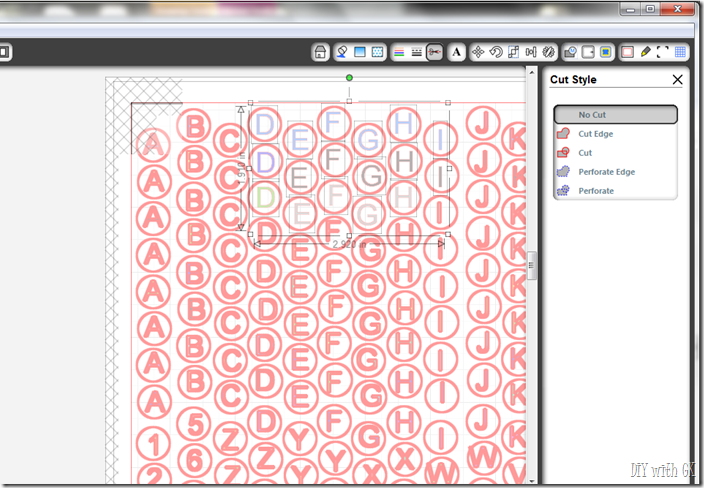
**UPDATED FEB 2014: I learned an easier and more correct way to do the above step. Rather than delete all the pictures or images (in this case, letters), you can leave them in place. What you need to do instead is click on the ‘OBJECT’ tab & then ‘CUT LINE SETTING’.

Then it will show you all the lines that the Silhouette will cut – they will be in thicker red. Since we are talking stickers, you obviously only want the outer edge cut (in this case the circles), so you click on the image you want on the sticker, then click ‘NO CUT’ on the right side toolbar. (I clicked on a bunch of the letters to show you how it will look…the letters are no longer outlined in the thicker red.) Do that to all your images/stickers & be sure to save so you can easily print then cut next time, without having to make any other changes. **You can even do that step before you copy and paste a bunch, then you only have to do it on a couple stickers.**
If all is set up correctly, the Silhouette should detect the registration makes and cut the stickers out perfectly (although very rarely, sometimes, for some reason, it just doesn’t work out for me…oh machines.)

[Mr. Yuk stickers for preschool –> Y = yuk]
Here are a few more of the stickers I’ve made:

[Valentine’s]
![[IMG_65495.jpg]](https://blogger.googleusercontent.com/img/b/R29vZ2xl/AVvXsEgI6pLmhmdy3YfWb9S1bzWJB8SEJJx7U4E934J9nXMpjn-DqbUt5Se94Y_6F8hp1IlgD5LmpluUlks3BkpTmqvNFyGW0vOiKJDIsIPiSZBvG60VwYigMoeFtGOqrNtAJa-Ci-plwMKbLJ-1/s1600/IMG_65495.jpg)
![[IMG_6544%255B1%255D.jpg]](https://blogger.googleusercontent.com/img/b/R29vZ2xl/AVvXsEiWvzTjoa42TiqwUawwL5li3eOM_j9xNEHIkGbGkY-szVMxhDLZH6nqfgAGbDHTWKW0dsXBrqv7wwP83uCyZL2bsqo_IkTuG_mWupe6treGBGPcrxOfCBVvHQAKerDVG8SiDRZaSDolzZkX/s1600/IMG_6544%25255B1%25255D.jpg)
![[IMG_6537%255B14%255D.jpg]](https://blogger.googleusercontent.com/img/b/R29vZ2xl/AVvXsEhJj5vt2kQWkqAJHeb2L4q-IqSo_IbXQFUgfvVTS5X4zjhw_xXVtZNoTIgEfdkfTKAqXIqRFZ2U4grIX4nc28lABz9jfVCx9KP7YH7eiNVWW7DFG8ZnpLWUZ7Se5sZ55FiVFy0jrpuRRfCP/s1600/IMG_6537%25255B14%25255D.jpg)
[bribes for potty training]
 [Tooth stickers for teeth brushing chart]

[stickers for Girls on the Run snack]
I’ve done a bunch more, but those are just a few.
I keep a lot of the stickers I make for the boys in this notebook with a pouch on the front cover. It is always in the diaper bag and they usually only get it out during church. They love all the different kinds of stickers they get to use. I love that I don’t spend an arm and a leg for them!

Sticker Supplies:
*Silhouette (SD or Cameo)
*Sticker paper – HERE
*images/pictures you want as stickers
*printer (unless you want it solid white, ie: TEETH stickers above)